 cadeo
cadeointegrations / garmin
Get your Garmin data into Cadeo
Cadeo reads everything through Apple Health — and out of the box, Garmin doesn't write to Apple Health. Your watch records overnight heart rate, HRV, sleep, and every run, but that data stops inside Garmin Connect until you flip one set of switches.
If Cadeo's recovery card says it's waiting for overnight heart data and you wear a Garmin, this is almost certainly why. Ninety seconds fixes it.
In the Garmin Connect app
More → Settings → Connected Apps → Apple Health → Turn On All
- 1
Open Garmin Connect → More
The tab bar's right-most item.
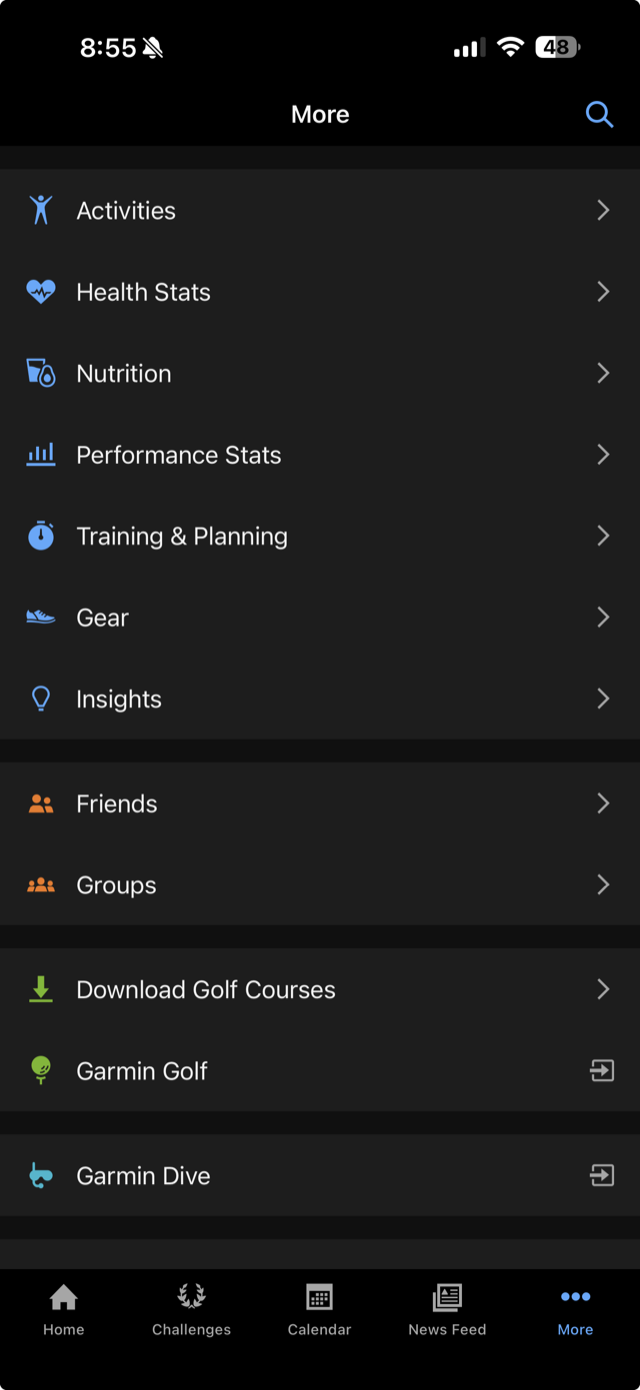
- 2
Settings
Scroll down — Settings sits below the feature list.
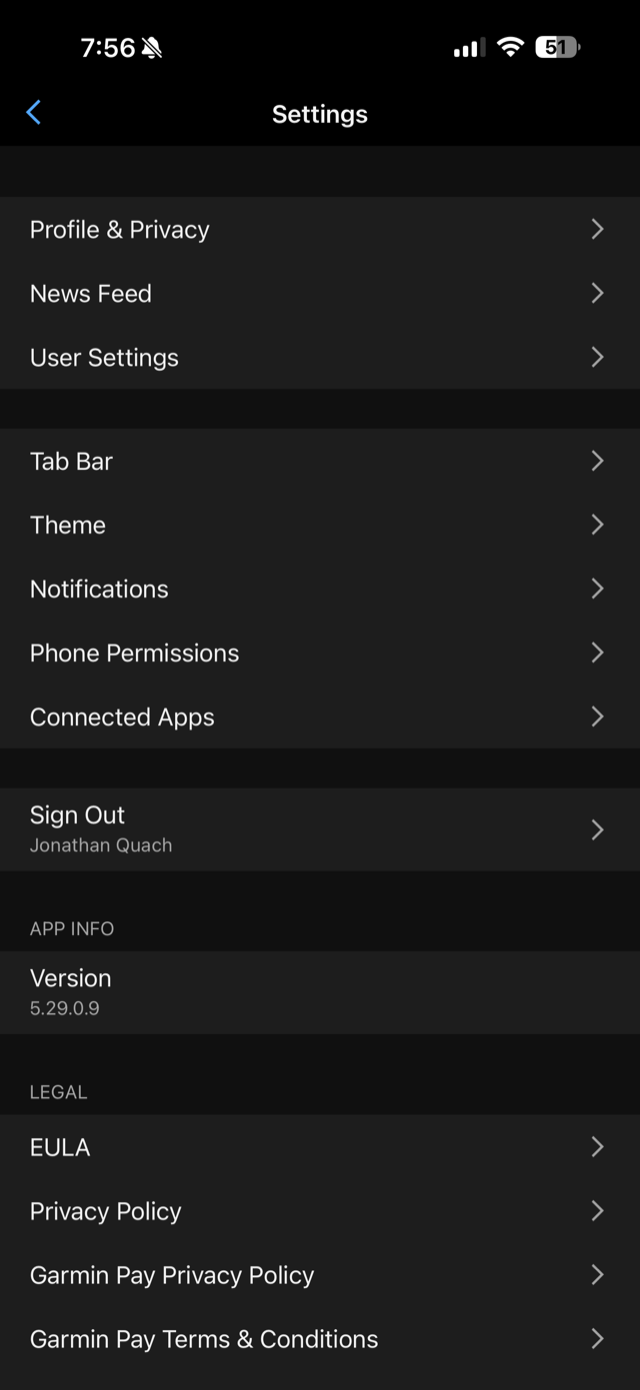
- 3
Connected Apps → Apple Health
If it says “not connected” under Platform Application, that's the whole problem.
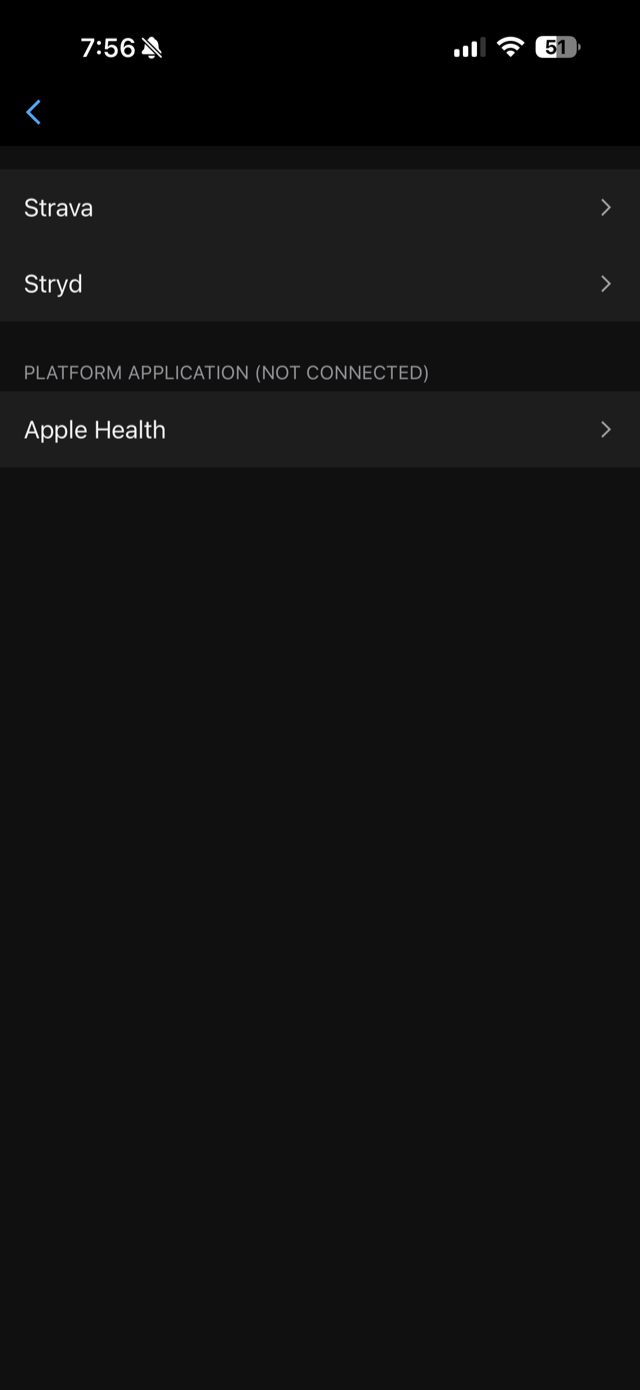
- 4
Turn On All
Apple's permission sheet lists every data type off by default. One tap fixes all of them.
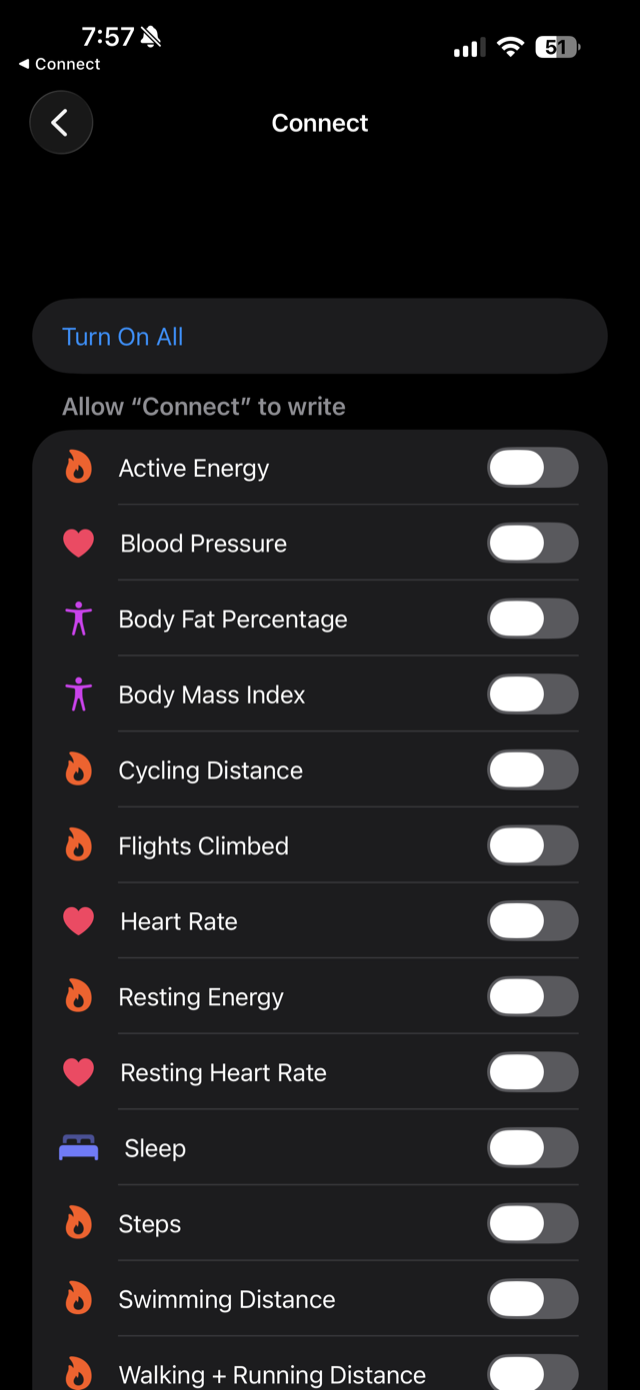
- 5
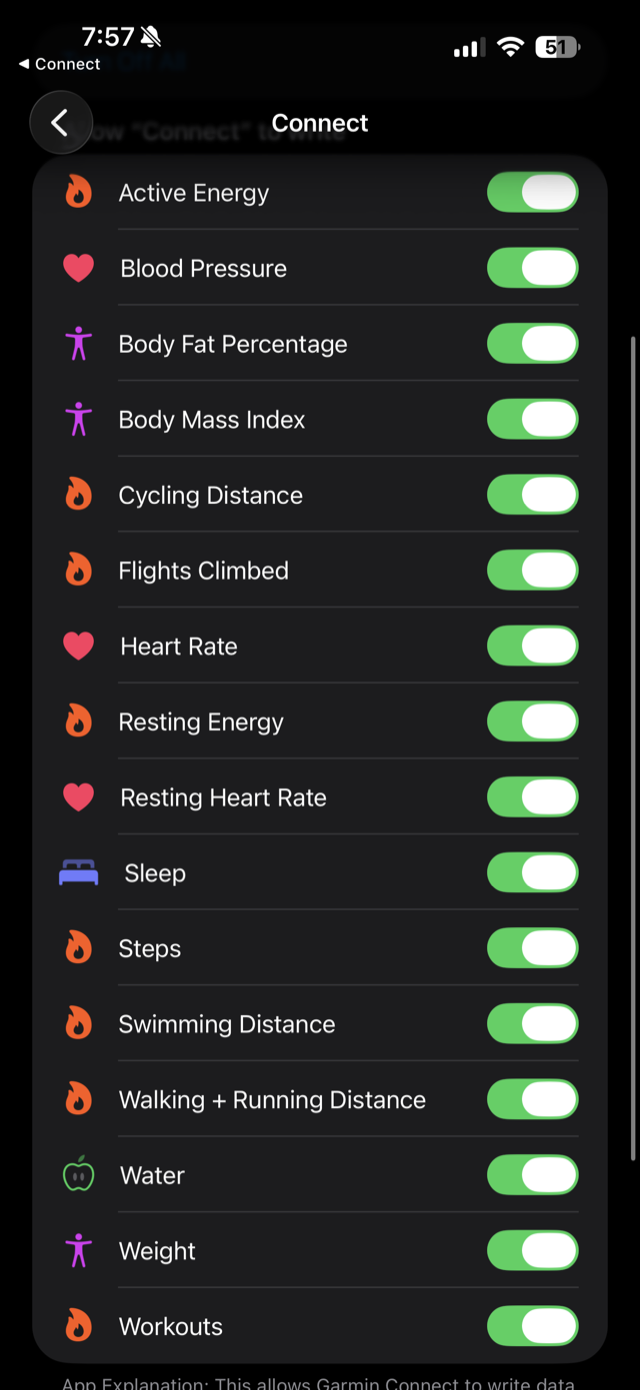
Everything green
Heart Rate, Resting Heart Rate, Sleep, and Workouts are the ones Cadeo reads — but all-on is simplest.
Or from iPhone Settings
Settings → Health → Data Access & Devices → Connect → Turn On All
- 1
iPhone Settings → Health
Then Data Access & Devices.
- 2
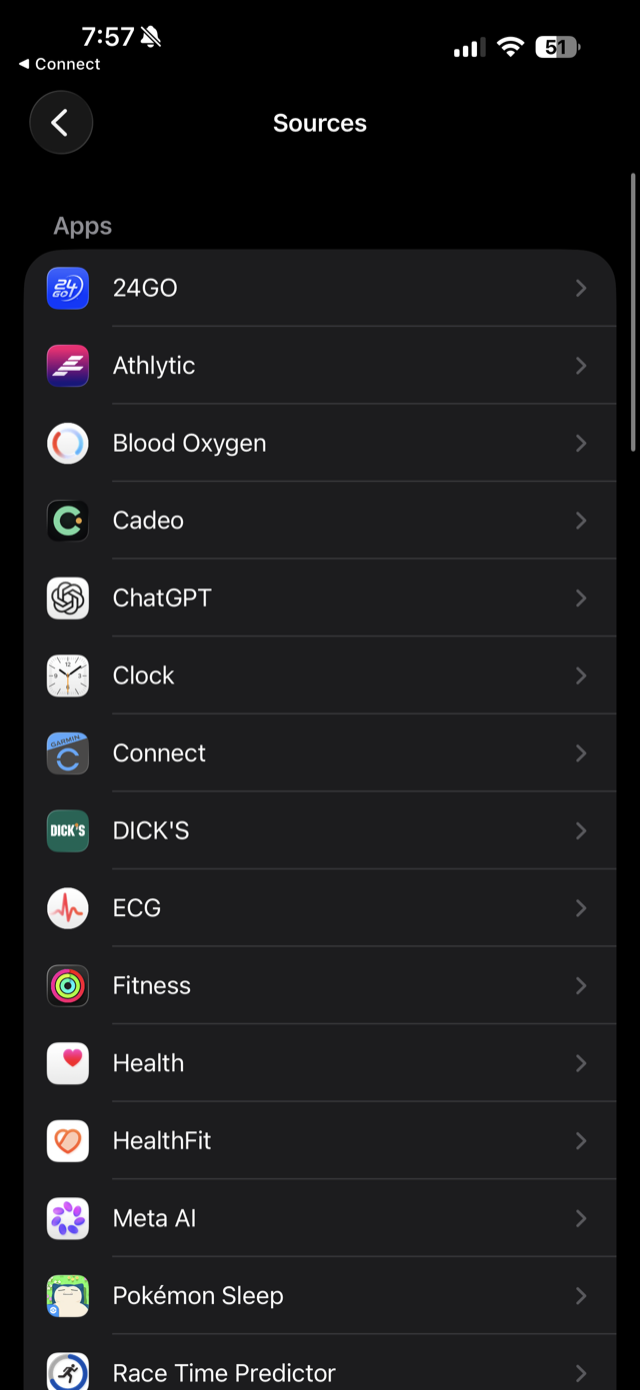
Choose Connect
That's the Garmin Connect app in Apple's list of sources.
- 3
Turn On All
Same permission sheet, same one tap.
Just turned it on? Recover your history through Strava
Cadeo → Profile → Data → Connect Strava → Resync
Garmin only writes to Apple Health from today forward — the months already on your watch never arrive. That history matters more than it sounds: it's how Cadeo knows what you can do. Your weekly mileage gets sized from what you've actually been running, your training paces anchor to real recent efforts, and your long-run baseline comes from long runs you've already done — not from a questionnaire.
Without history, the engine starts cautious from zero and spends weeks re-earning what you've already proven. If your Garmin posts to Strava (most do), you can skip all that — Cadeo imports your running history directly:
- 1
Open Cadeo → Profile → Data
The Data icon sits top-right on the Profile tab.
- 2
Connect Strava
On the Strava card — it hands off to the Strava app to authorize, then brings you back.
- 3
Tap Resync
Your recent months of runs import, and Cadeo sizes your plan from what you've actually been running — not from zero. Strava recovers run history; overnight heart data still flows through Apple Health going forward, which is why the toggles above matter too. Full Strava guide →
Good to know
- Garmin syncs from today forward — past workouts and sleep don't backfill into Apple Health. The Strava import above recovers your run history; sleep history stays behind.
- Wear the watch overnight: resting heart rate and HRV come from sleep, and they're what drives your recovery score.
- After enabling, open Garmin Connect (so it syncs), then open Cadeo and pull down to refresh. Your first overnight data lands the next morning.
- Apple Watch runners: none of this applies — your data flows to Apple Health automatically.
Stuck? Reply to any Cadeo email and a human will get you sorted.
← All integrations